
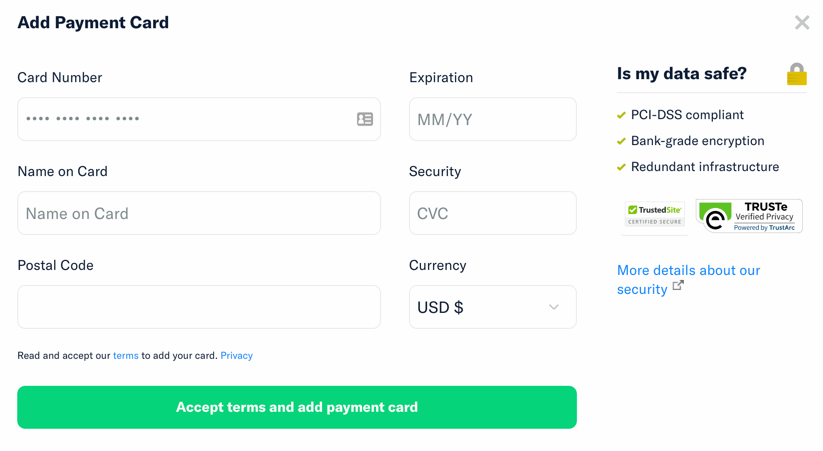
To use Expensify, you’ll need to enter the credit card you want to use to pay subscription fees.
Add your Payment Card
Navigate to Settings (gear icon) > Account > Subscription. In the Payments section, add your payment card.
Switch Billing Owner
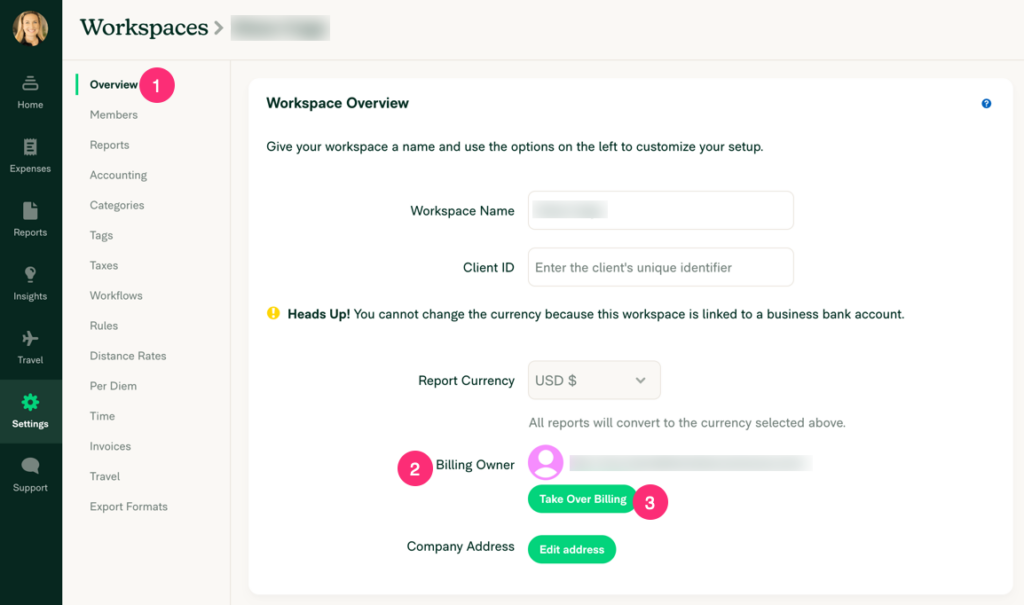
Navigate to Settings (gear icon) > Workspaces > Group > [Workspace Name] > Overview.
Find the Billing Owner’s name and email on screen and click the Take Over Billing button under it. This will change the billing for the workspace subscription into your name and use your subscription payment card.
Leave a Reply