
Many businesses track expenses by customer so they can create job profitability reports. If you’ve marked expenses billable when they really aren’t, they you may end up with undesirable effects, such as bogus billable expenses in the invoice drawer, an Unbilled Charges report that is unusable, an excess of billable expenses taking a long time to load on invoices, or an account that can’t be marked inactive in the Chart of Accounts.
There is a tool in QuickBooks to clean up billable expenses. You may want to consider running the “Unbilled Charges” report first if you want an archive of the billable expenses you are about to delete. Here are the steps:
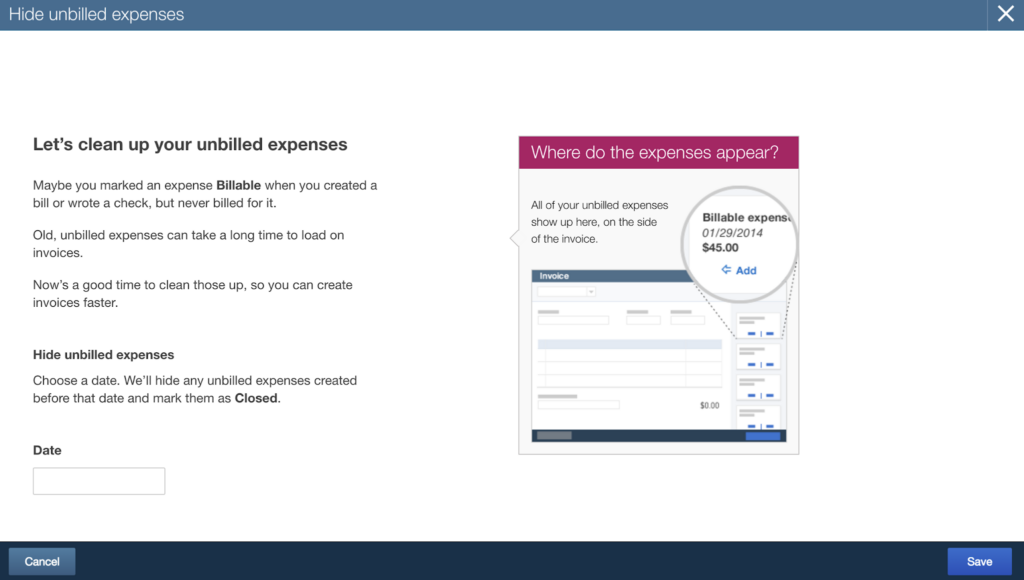
Open the Billable Expense Cleanup Tool
Log in to the QuickBooks Online company. This tool is not found on the navigation menus. Type https://qbo.intuit.com/app/managebillableexpense into your browser’s address field.
Select Date Range
Enter a date in the Date field and click Save. QuickBooks will hide all billable expenses prior to that date.
NOTE: This only works with billable expenses. It does not work with billable time, delayed charges, or delayed credits.
TIP: Bookmark this page so you’ll know where to find it later.
Leave a Reply