
For the bills that you pay via wire or some other payment method outside of BILL, follow these instructions to mark them as already paid.
Mark as PAID
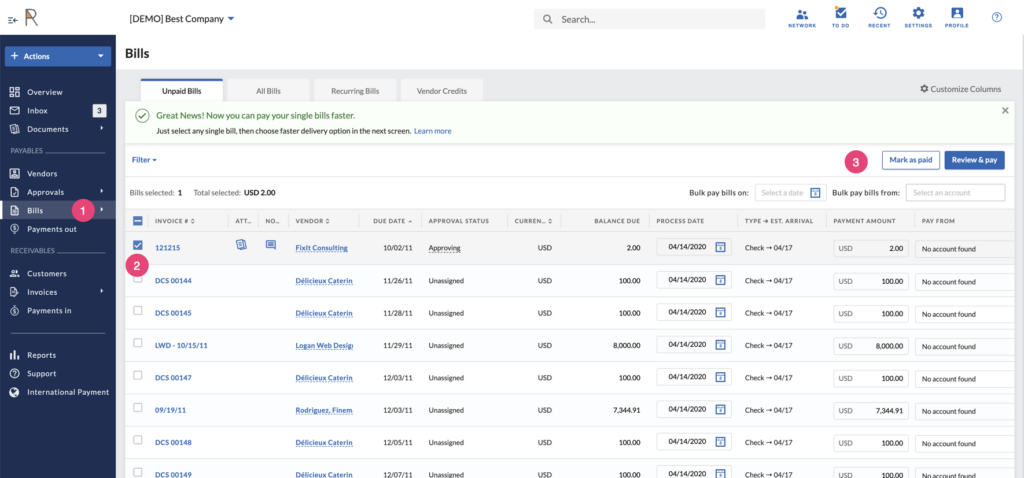
- From the left navigation bar, click Bills > Unpaid Bills.
- Check the box next to the bill you want to mark as already paid
- Click the button “Mark as paid”
Enter details
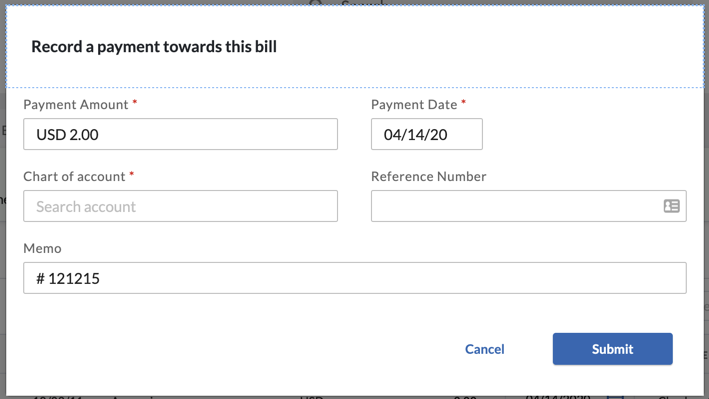
In the pop-up window, enter the following:
- Payment Amount
- Payment Date
- Chart of account = bank account you paid from
- Reference Number = check number, or “wire” or “ACH”, etc
- Memo (optional)
- Click Submit to finish
Mark as PAID in bulk
From the same screen above, you can also check the boxes on several bills to select more than one, then click the same “Mark as paid” button. You’ll be taken to a screen to enter the payment details for each bill you selected.
Mark as PAID when entering a bill
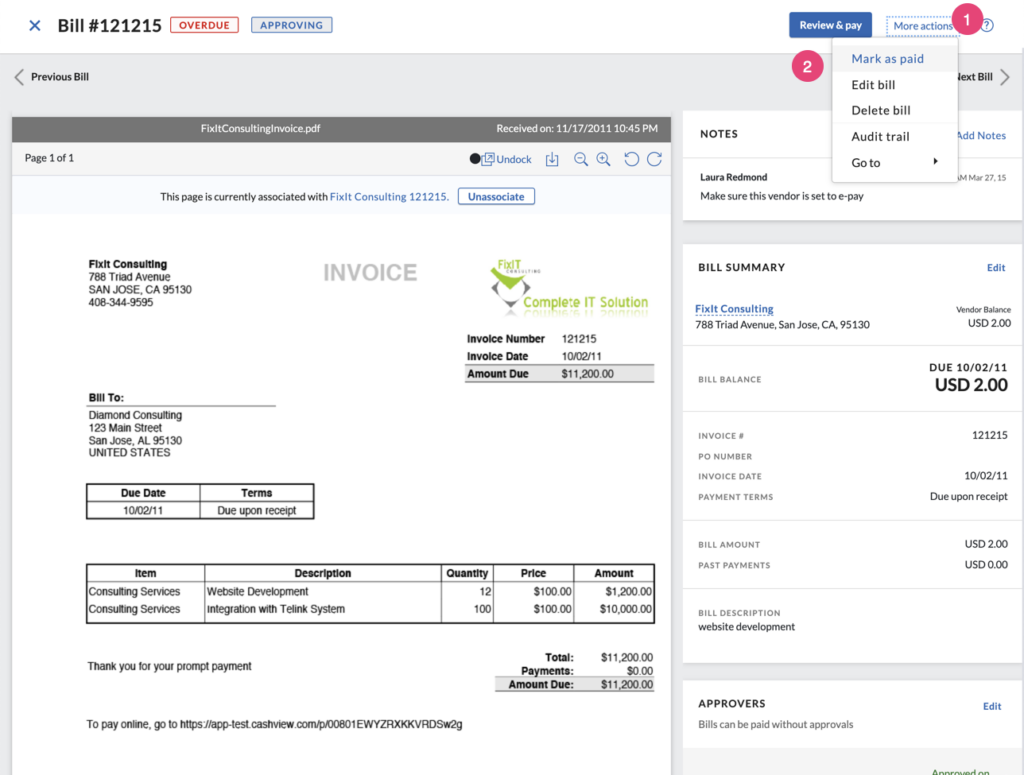
When you are first entering a bill (or viewing or editing a bill), look in the upper-right corner for a blue hyperlink labeled “More actions”. Click that to open the menu, then select “Mark as paid” to enter payment details.
Leave a Reply