
Follow these instructions to authorize an existing BILL user to use a bank account to schedule live bill payments in BILL
Navigate to Bank Accounts
On the left navigation bar, click Settings
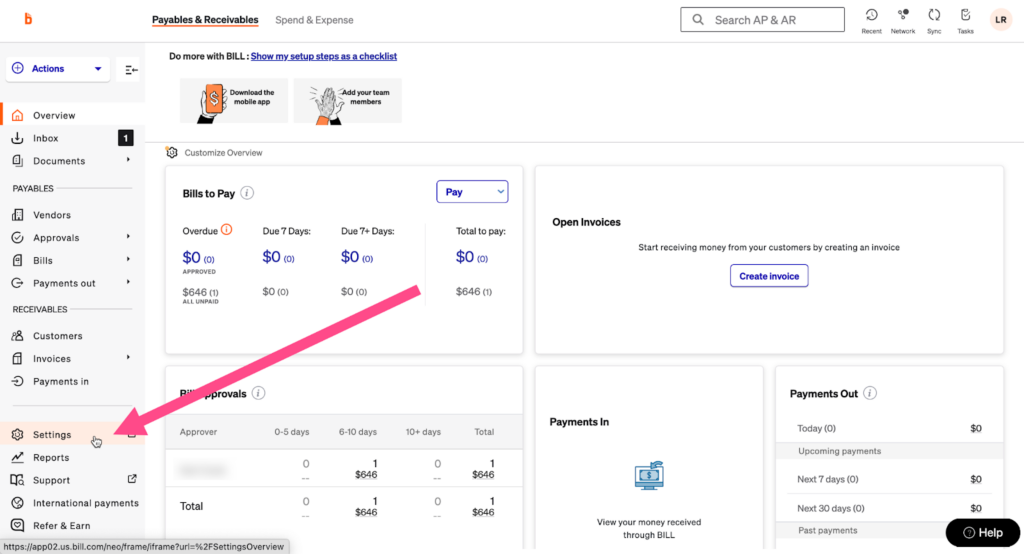
On the left side of the Settings Navigation bar, under Bank & Payment Accounts, click Bank Accounts

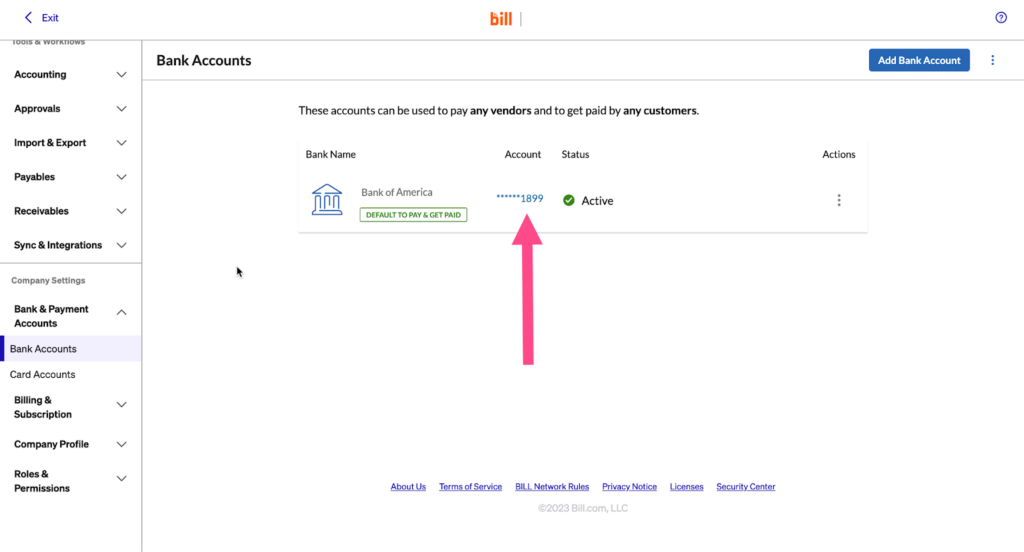
Choose the Bank Account
Click the hyperlinked last 4 digits of the bank account you want to authorize the user to use
Add Authorized User
Select Show in the Authorized Users section
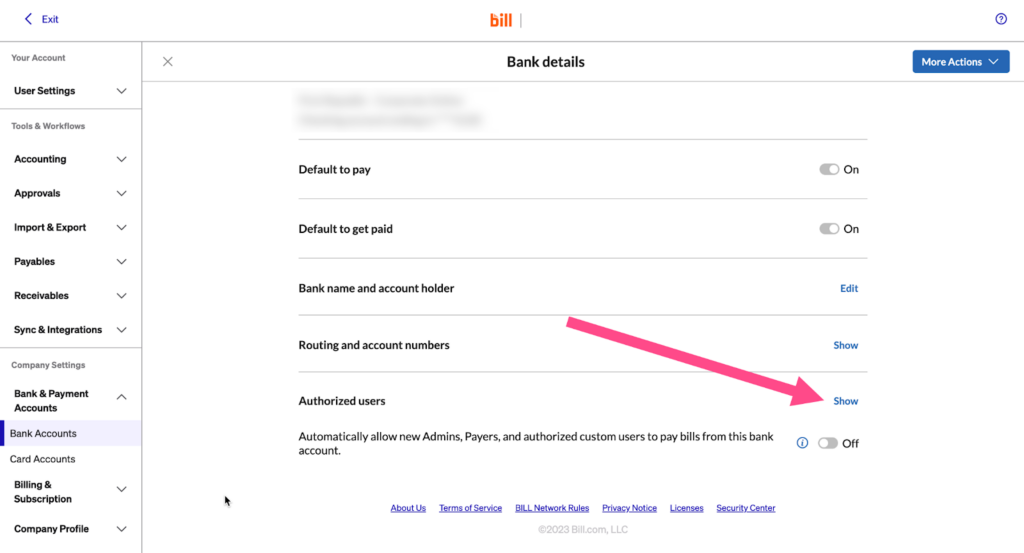
Click the Add User button and select the user’s name from the dropdown list of existing users who have the appropriate permission to pay bills in BILL
Leave a Reply