
Determine the transaction type
Determine whether the check you want to void is a QB transaction type “Check” or “Bill Payment.”
- Locate the item in QBO.
- The transaction type is shown in the top left corner
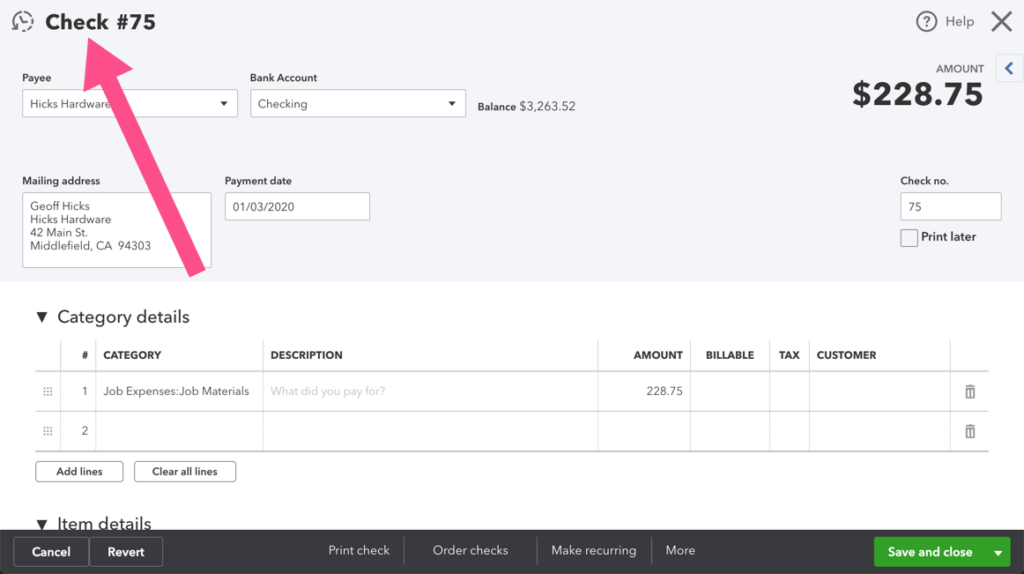
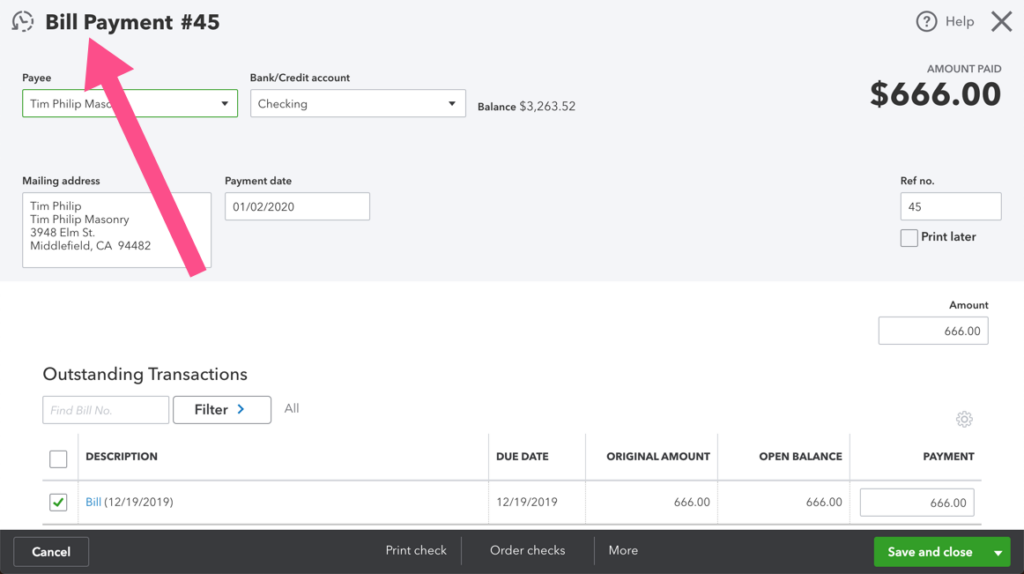
If the type reads “Bill Payment,” click here to learn how to void a Bill Payment in QuickBooks
Determine Whether the check was created in a closed period
Locate the check transaction and determine whether the check is dated in a closed or open period.
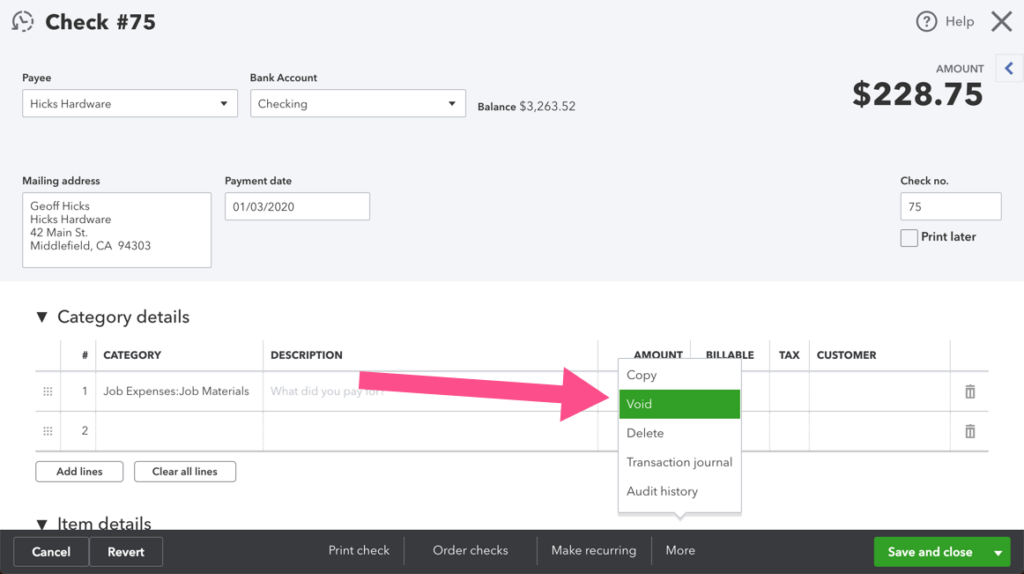
Voiding a check in an open period
- Click More > Void in the bottom menu bar.
- This will debit the bank account and credit the account specified on the screen
- You are done.
Voiding a check in a closed period
- Don’t use the Void feature because that will zero out this check and affect the general ledger as of the closed-period transaction date and change prior period account balances.
- Verify that the check is not reconciled
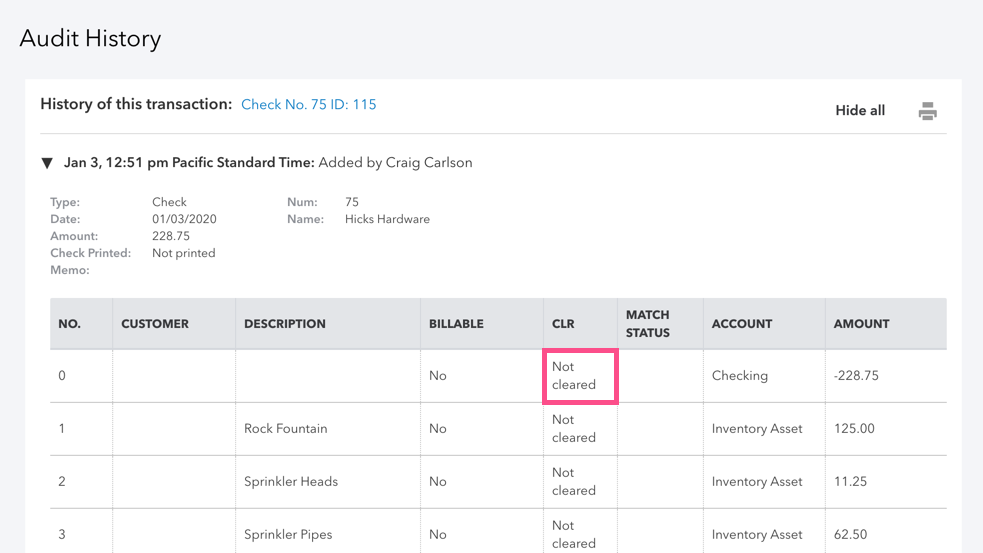
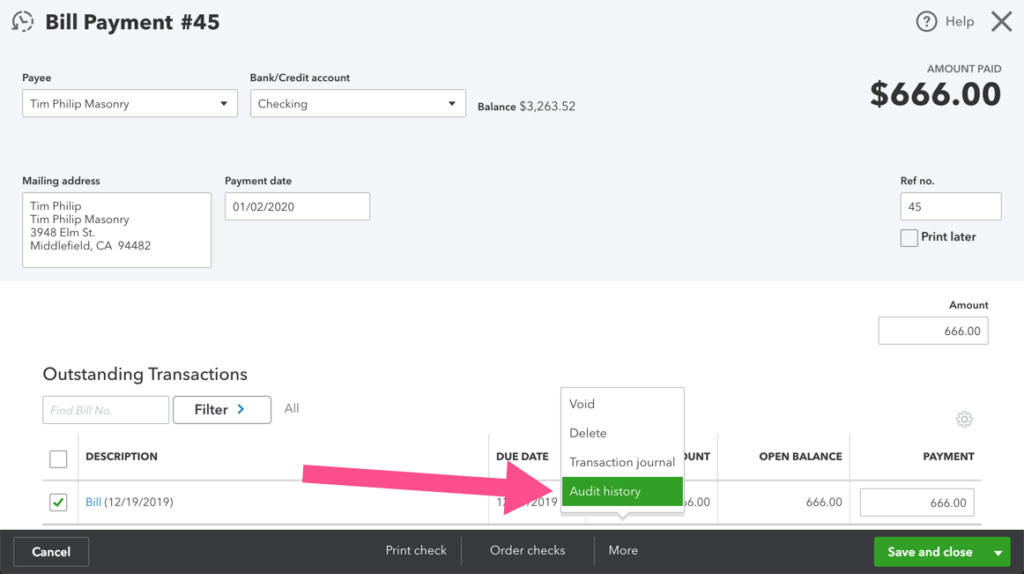
- Click More > Audit history in the bottom menu bar
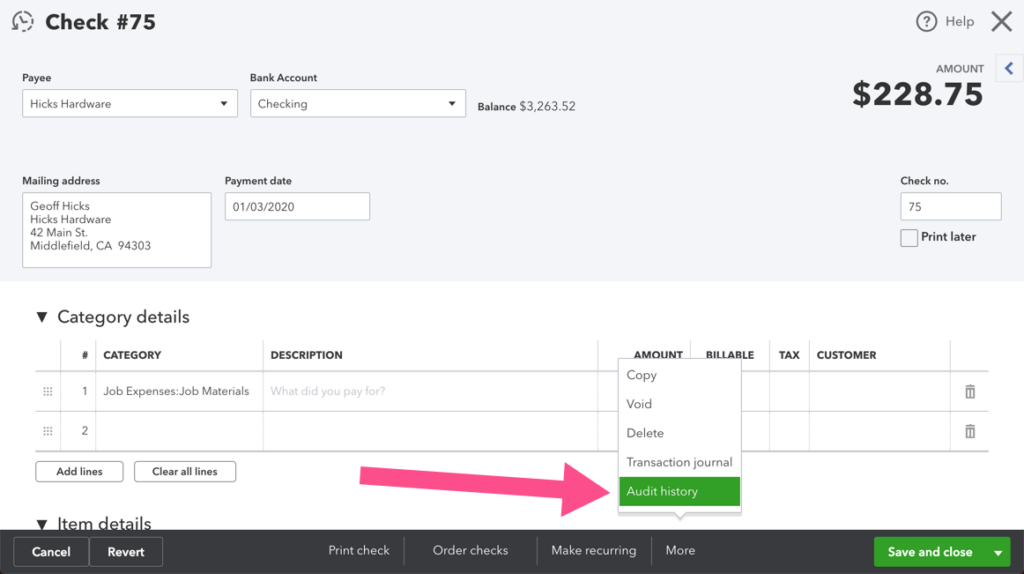
- Expand the topmost entry to view details
- View “CLR” column
- Confirm status is Not Cleared
- Add a note in the memo line that this check is VOID. Save.
- Right-click in Chrome Tab > Duplicate. A new tab will open, already logged in to QBO on the same screen. You may want to pull this tab out into its own new window so you can view the two side by side.
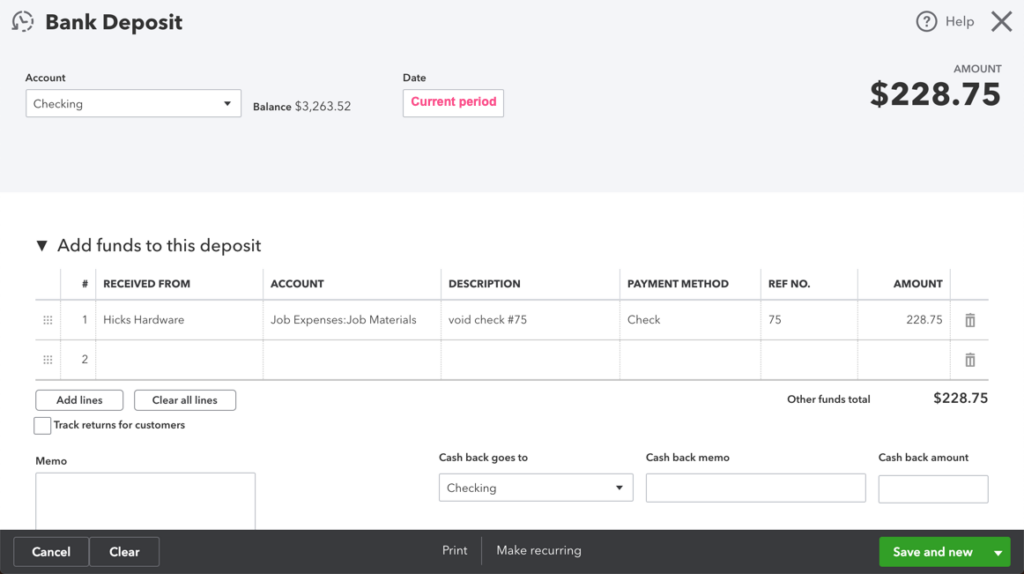
- On the new tab, navigate to New > Bank deposit
- In the drop-down field, enter the same bank account used on the check that you are voiding
- Use today’s date, or another date in an open period
- In the section “Add funds to this deposit” (click to expand, if the grid is not showing), use a row to enter received from (vendor name), account, description (“voided check #xxx”), payment method (“Check”), reference number (original check #), amount, and class.
- Save and close
- This will debit the bank account and credit the account specified on screen, thereby reversing the effect on the general ledger of the original check that you wanted to void.
Reconcile the voiding transactions
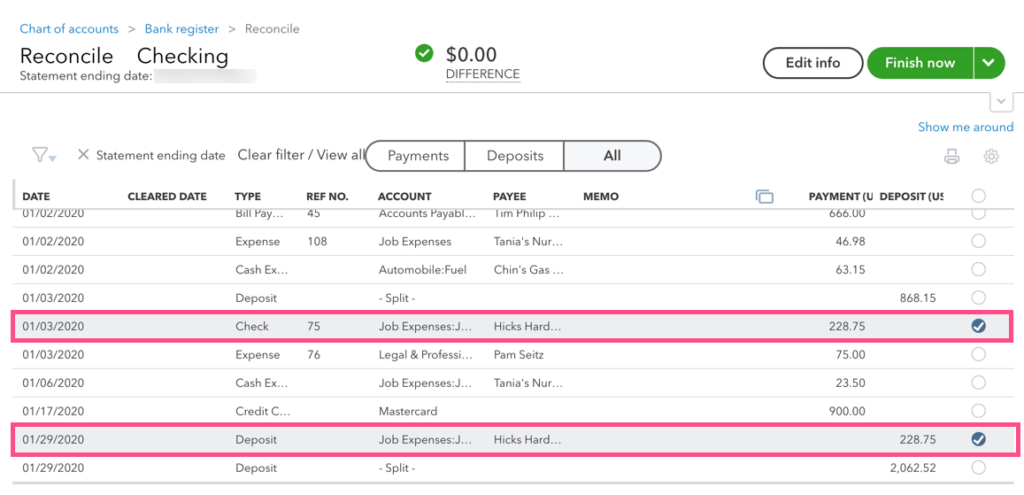
Navigate to Gear icon > Tools: Reconcile
You may create a special adjusting reconciliation now, or wait and perform these steps on your next monthly statement reconciliation
- Check the box next to the check that you want to void
- Check the box next to the deposit that you entered to reverse the check
- This has a net zero effect on your reconciliation
NOTE: It is a best practice to set the Closing Date after you reconcile and close a period to prevent anyone from accidentally changing information in the future.
Leave a Reply